

Search configuration
Parachute can ground its answers in your knowledge base, in Australian legislation, and in the public web. Search configuration is how you tell Parachute which of these to use, how broadly to look, and whether to apply that for everyone in your workspace or just for one conversation.
There are two places you do this:
- Workspace search settings - the defaults that every new thread starts with, set once by an admin.
- The sources picker and “Configure search” sheet in chat - per-thread overrides, available to anyone using the thread.
Sources, at a glance
Parachute treats each retrieval channel as a separate source that you can switch on or off independently:
- Web search - searches the public web for relevant pages and articles.
- Legislation - searches Australian Acts and Regulations for relevant provisions, using the Acts you have enabled in your Legislation library.
The knowledge base is always available to threads and is not toggled from this picker.
The sources picker in chat
Every chat input has a Sources button next to the message field. The button label shows the current state at a glance:
- No sources - nothing is on. Parachute will not search legislation or the web for this message.
- 1 source - Legislation or 1 source - Web - one channel is on.
- 2 sources - both channels are on.
Click the button to open the sources popover. It has a row for each source with a toggle, a short description, and any extra context you need to make the right choice.
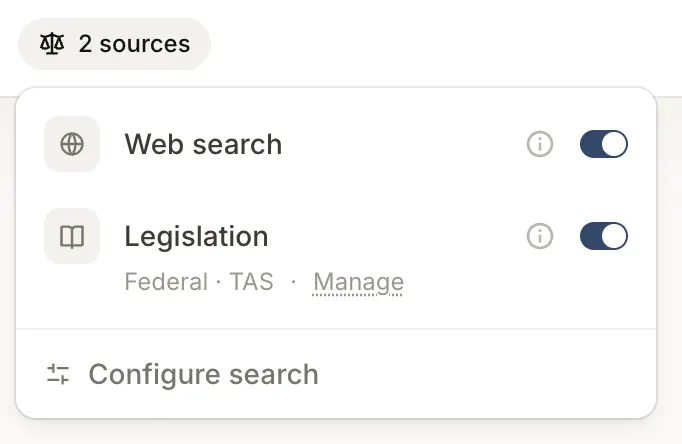
Web search
Toggle web search on if you want Parachute to consult the public web for the thread. When on, Parachute decides for itself when web results are useful and cites the pages it draws from.
Legislation
Toggle legislation on if you want Parachute to retrieve from your enabled Australian Acts. Beneath the toggle you will see the current jurisdiction scope (for example, Federal - QLD) and a Manage link that takes you to the Acts library so you can change which Acts are enabled.
If your workspace has no jurisdictions configured yet, the toggle shows Set your jurisdiction to enable with a link to workspace settings. Legislation cannot be switched on until at least one jurisdiction is selected.
Configure search
At the bottom of the popover is a Configure search button. Use this when toggling on and off is not enough and you need to narrow what either source returns for this thread.
Workspace search settings
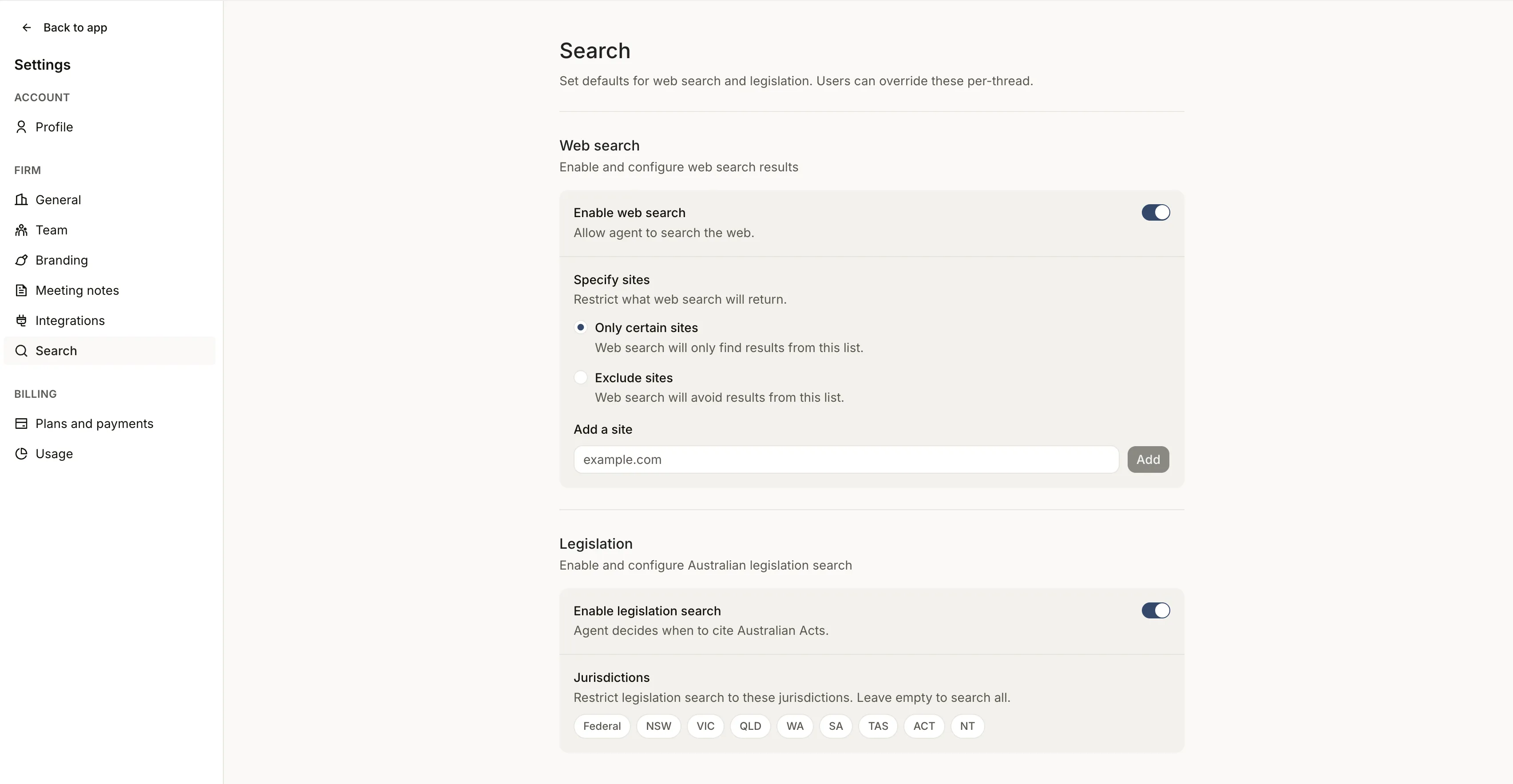
Workspace settings live at Settings - Workspace - Search (/settings/workspace/search). Only admins can change them. Everyone else sees the page in read-only form.
These settings are the defaults applied to every new thread in your workspace. Changing them does not retroactively change threads that already exist - it changes what new threads start with.
Legislation
The legislation section has a single toggle, Enable legislation search:
- On - Parachute can cite Australian Acts in new threads. A Jurisdictions panel appears underneath.
- Off - Legislation is off by default in new threads.
In the Jurisdictions panel, click any of the nine jurisdiction pills (Federal, NSW, VIC, QLD, WA, SA, TAS, ACT, NT) to include it. An active pill is highlighted; an inactive pill is greyed. Leave every pill off to search across all jurisdictions.
Web search
The web search section has the Enable web search toggle:
- On - Parachute can search the public web in new threads. A Specify sites panel appears underneath.
- Off - Web search is off by default in new threads.
In the Specify sites panel, choose how Parachute should treat the site list:
- Only certain sites - results are restricted to the domains on the list.
- Exclude sites - results from the listed domains are avoided.
Add a domain by typing it into the Add a site field (for example, austlii.edu.au) and clicking Add. The input accepts the domain on its own - you can paste a full URL and Parachute will trim it down to the hostname. Remove a domain by clicking the × on its chip.
Leaving the list empty when Only certain sites is selected means no web results will pass the filter, so check the mode and the list together when you make changes.
Per-thread overrides
You can override the workspace defaults for a single thread without touching the workspace settings. This is useful when you want one thread to look more narrowly (for example, only NSW legislation for a state-specific question) or to add web search just for one conversation.
To open the per-thread settings:
- In the chat input, click the Sources button.
- Click Configure search at the bottom of the popover.
- The Configure search sheet slides in from the side.
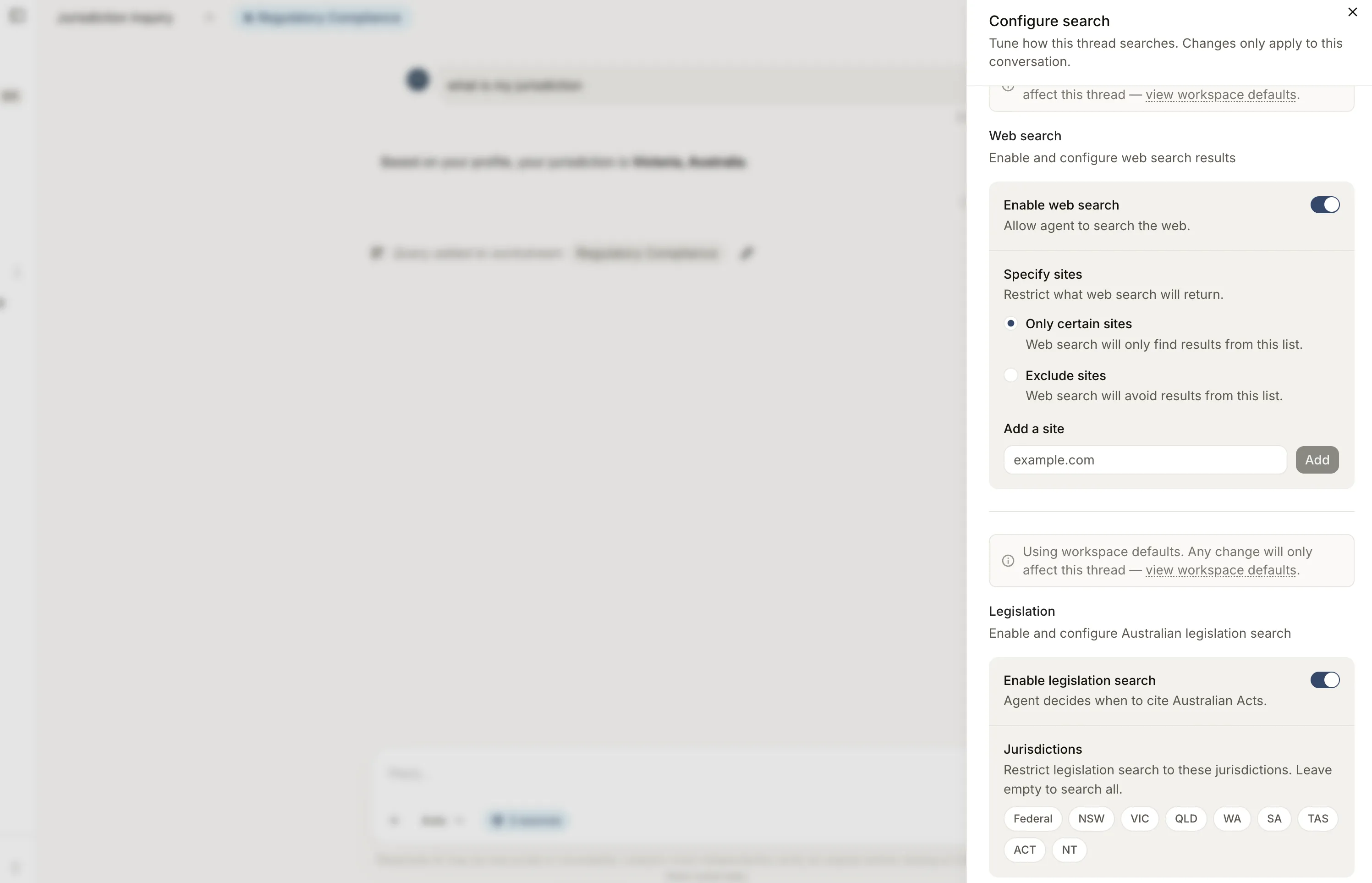
The sheet has the same legislation and web search controls as the workspace settings page. Changes save to the thread, not to the workspace.
Inheritance and overrides
A banner at the top of the sheet tells you whether the thread is using the workspace defaults or has overrides:
- Using workspace defaults - the thread inherits the workspace settings. The first change you make will turn into a thread-level override.
- Overridden for this thread - the thread has its own settings and is no longer following the workspace defaults.
Either banner includes a link to View workspace defaults so you can check what the workspace is set to without leaving the sheet.
New thread settings
If you open Configure search before sending your first message in a new thread, the sheet shows an info banner explaining that the settings will apply once you send the first message. They do not save to the workspace. If you close the thread without sending a message, the pending settings are discarded.
How sources work together
A few details worth keeping in mind:
- Sources are independent. You can have legislation on and web search off, or both on, or both off.
- Each source’s scope is independent too. Restricting jurisdictions for legislation does not affect web search, and adding a site to the web list does not affect legislation.
- Per-thread overrides only affect the thread they were made in. They never change the workspace defaults or other threads.
- Disabling an Act in the Acts library hides it from legislation search across your whole workspace, including in threads where legislation is on. To bring it back, re-enable it from the same screen.
Next steps
- Legislation search - browse the Acts library and choose which Acts are available to search.
- Knowledge base - add your firm’s own documents to the pool Parachute searches.
- Writing effective prompts - get more out of legislation and web citations.
Was this page helpful?