

Legislation search
Parachute keeps a structured copy of Australian Acts and Regulations so you can browse legislation by section, read the full text, and have the AI cite the right provisions when you ask questions in a thread.
This article covers the Acts library. To turn legislation on as a source in chat or to restrict which jurisdictions Parachute searches, see Search configuration.
Finding the Acts library
The library lives under Legal sources in the left sidebar. Open it to reach the Legal sources page, then choose the Legislation tab. The direct URL is /legal-sources/legislation.
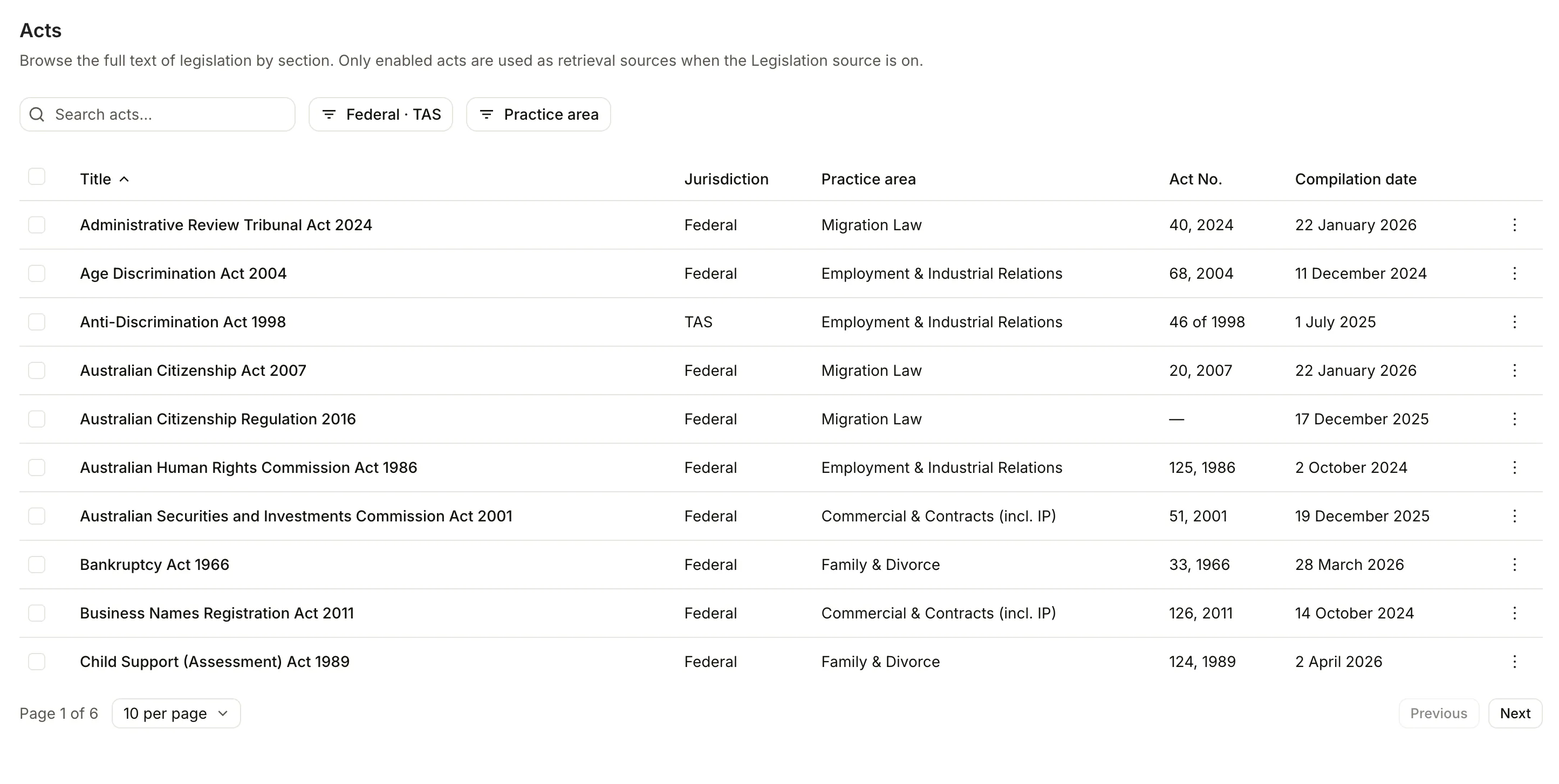
You will see a heading titled Acts and a sortable, filterable table of every Act that has been ingested into your workspace.
Browsing and filtering
Three controls sit above the table.
- Search acts - the search box matches against the short title, long title, and Act number. Start typing to narrow the table immediately.
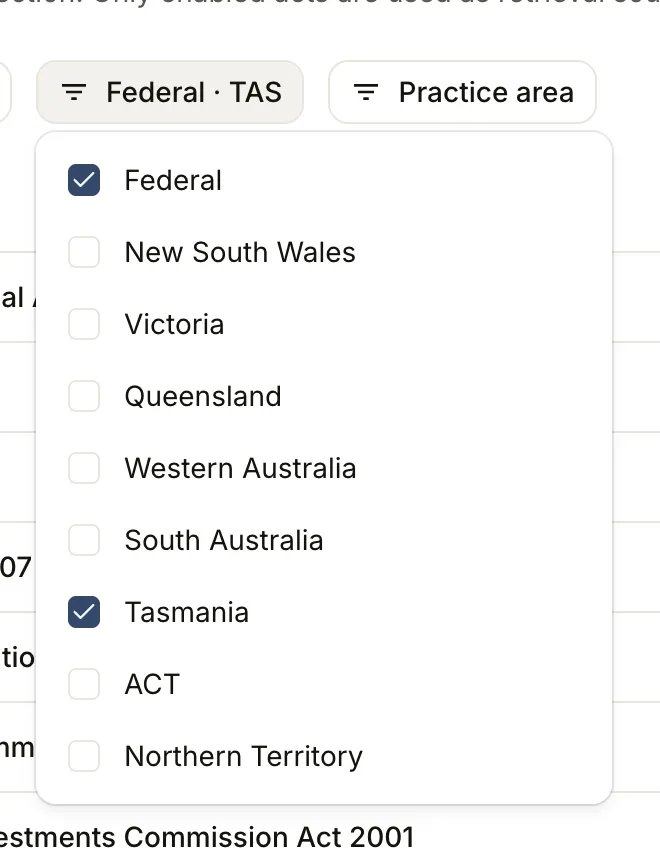
- Jurisdictions - opens a popover with checkboxes for the nine Australian jurisdictions (Federal, NSW, VIC, QLD, WA, SA, TAS, ACT, NT). Tick any combination to filter the list. If you have customised the filter, a Reset to default button appears so you can return to your workspace’s default jurisdictions.
- Practice area - opens a popover listing the practice areas tagged across the ingested legislation. Tick one or more to filter. A Clear practice areas button appears once anything is selected.
Your jurisdiction and practice area choices are remembered in your browser, so the table looks the same the next time you open it.
The Acts table
Each row represents one Act. The columns are:
- Title - the short title. Disabled acts show an Off badge and appear greyed out.
- Jurisdiction - the jurisdiction short label (for example, NSW or Cth).
- Practice area - the area of law the Act sits under.
- Act No. - the Act number, where available.
- Compilation date - the date of the compilation Parachute holds.
- Actions - a dropdown menu with Enable for search or Disable for search for that single row.
Most columns are sortable. The table paginates at 10 rows by default and you can switch to 20, 50, or 100 per page.
Opening an Act
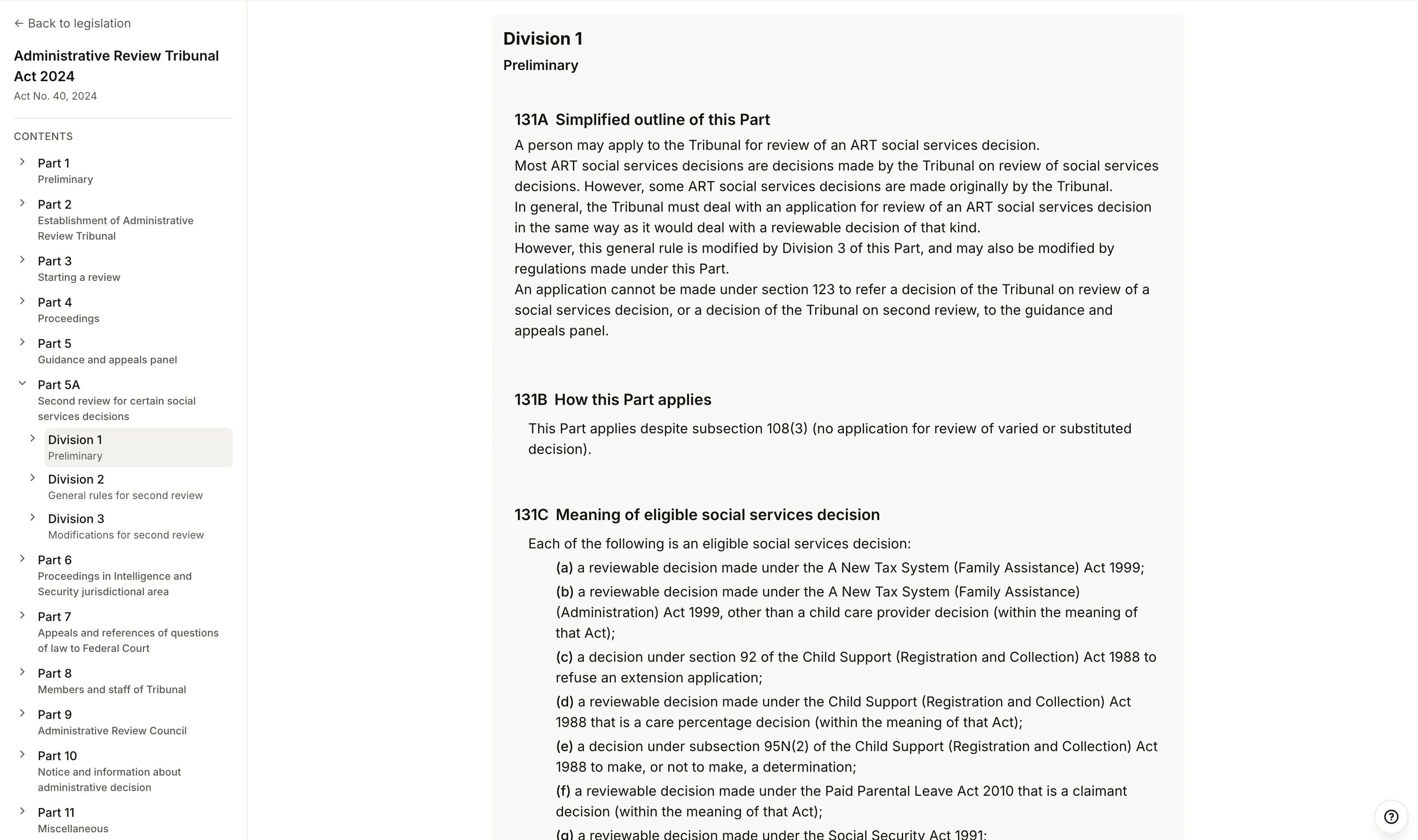
Click any row to open the full-text viewer for that Act. The URL becomes /legal-sources/legislation/{slug}.
The viewer has two parts:
- Sidebar (left) - a collapsible table of contents showing the structure of the Act (volumes, chapters, schedules, parts, divisions, subdivisions, and sections). Click any node to jump to it in the main content and highlight it.
- Main content (right) - the rendered legislation, with headings styled by node type so chapters and parts stand out from sections and subsections.
At the top of the viewer you will also see:
- The Act’s long title (where available).
- A metadata block listing the jurisdiction, practice area, Act number, compilation number, compilation date, and any “includes amendments up to” date Parachute has on file.
- A View on [register] or Search on [register] link that opens the relevant official jurisdiction register in a new tab. If Parachute has the exact URL stored, the link goes directly to the Act. Otherwise, it opens the register’s search page so you can find it manually.
Use Back to legislation at the top of the sidebar to return to the Acts list.
Linking to a specific section
The viewer adds anchors to every node, so each section, subsection, paragraph, and schedule has its own URL. Click a node in the table of contents and the URL updates with a hash (for example, #section-25). Share that URL with a colleague and the page opens to the same section, with it highlighted.
Enabling and disabling acts for search
Parachute only retrieves from the Acts you have enabled. Disabling an Act means the AI will not cite it, even when the Legislation source is switched on in a thread.
You can change this in two ways.
One Act at a time:
- Open the Acts list.
- Open the row’s Actions menu.
- Choose Disable for search or Enable for search.
Several Acts at once:
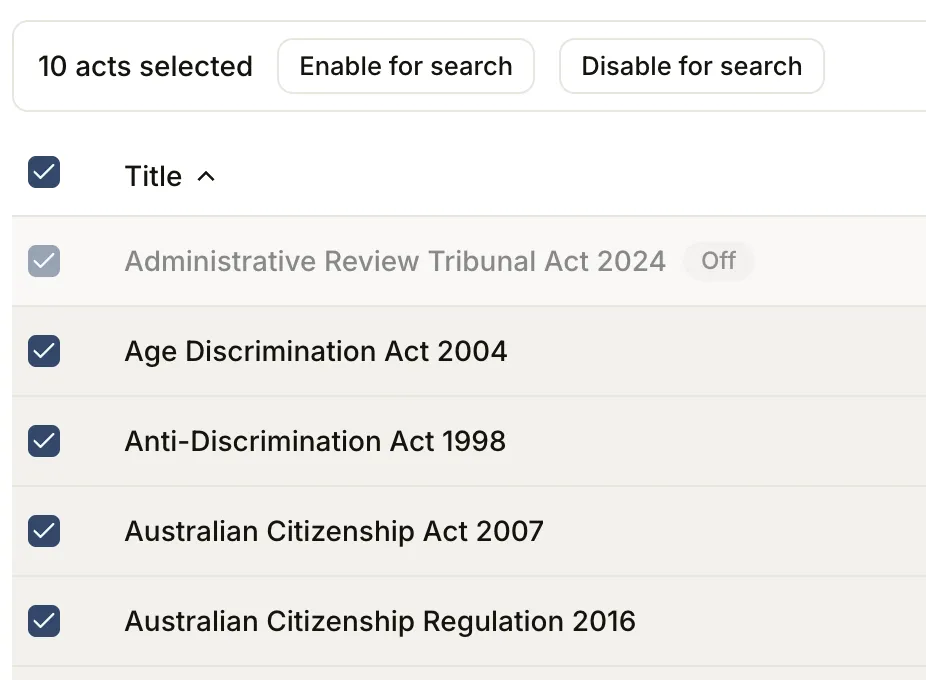
- Tick the checkboxes for the rows you want to change. The header checkbox selects every Act visible on the current page.
- A selection bar appears showing the count of selected acts (for example, 3 acts selected).
- Choose Enable for search or Disable for search.
- Use Clear selection when you are done.
Disabled acts show an Off badge in the title column and stay in the list so you can re-enable them later. Enable/disable choices apply to your whole workspace.
How legislation appears in chat
When the Legislation source is on in a thread, Parachute searches the enabled Acts within the configured jurisdictions and cites relevant sections in its response. Citations link back to the section in the Acts viewer, so you can read the surrounding context without leaving the thread.
To turn the Legislation source on, set jurisdiction defaults, or override the scope for a single thread, see Search configuration.
Empty states
You may see one of these messages instead of the table:
- No legislation has been ingested yet. - your workspace does not have any Acts loaded yet. Contact support if you expect Acts to be available.
- No acts match your search. - your search query did not match any Acts. Clear the search box or broaden the query.
- No acts match your current filters. - your jurisdiction or practice area filters exclude every Act. Adjust the filters or reset them.
Next steps
- Search configuration - turn legislation on as a source and set jurisdiction defaults.
- Writing effective prompts - get the most out of legislation citations in your responses.
- Knowledge base - add your firm’s own documents alongside the legislation library.
Was this page helpful?