

Matters
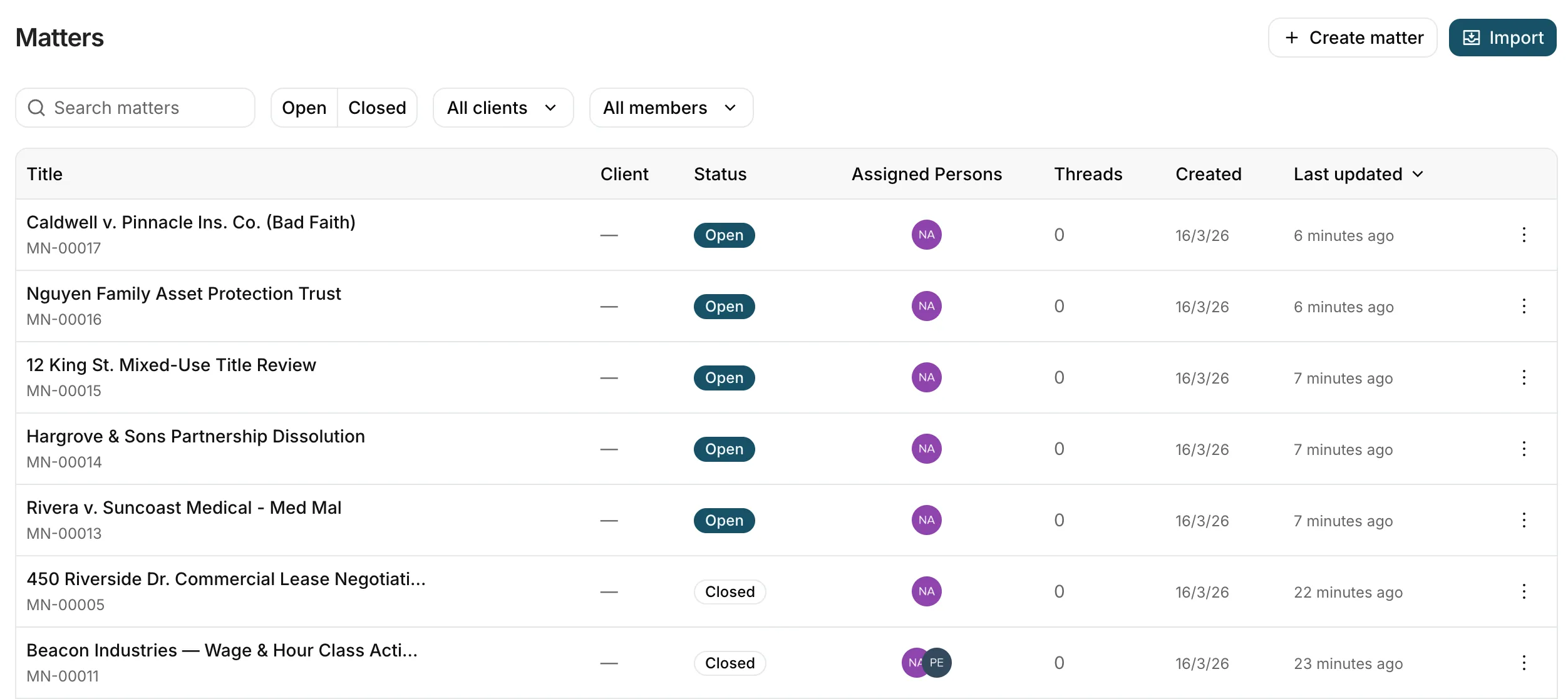
Matters let you group related threads together so all the work for a single engagement, case, or project lives in one place. Instead of tracking related threads separately, link them to a matter and keep the full picture accessible.
How matters work
A matter is a container for threads. Each matter has a title, a reference number, and can hold any number of linked threads. The threads themselves work exactly as they always have — you draft documents, run reviews, and ask questions inside them — but now they’re connected under a shared matter.
This is useful when a single piece of work involves multiple conversations. For example, one matter might include a thread for drafting a privacy policy, another for reviewing a vendor contract, and a third for answering client questions — all linked together.
Creating a matter
To create a matter:
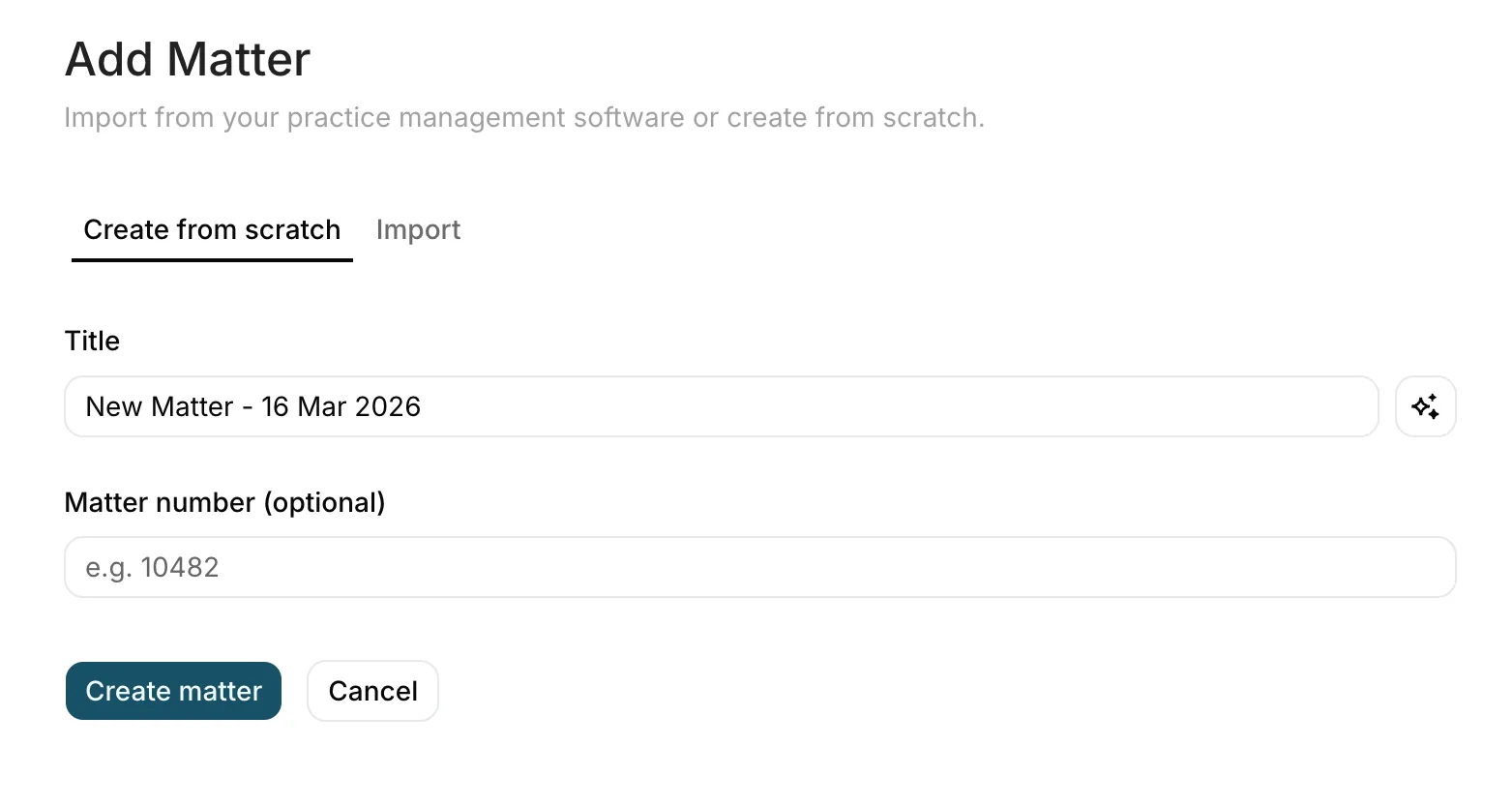
- Click All matters in the sidebar
- Click New matter
- Enter a title for the matter
- Optionally add a reference number — if you leave this blank, Parachute generates one automatically (e.g. MN-00001)
- Add any notes relevant to the matter
The title must be unique within your organisation. Notes are a free-text field where you can capture key context, instructions, or background information.
Sharing a matter
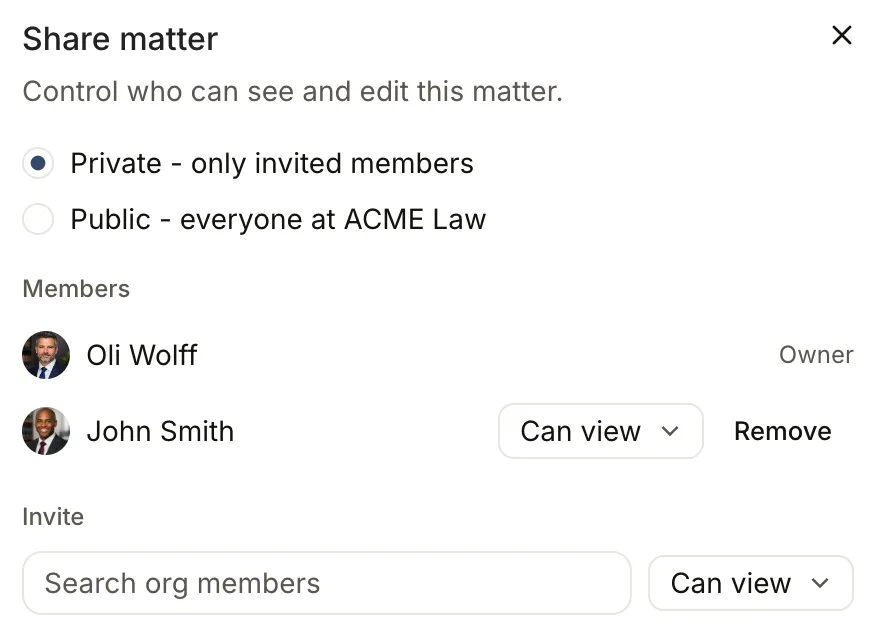
Control who can see and work on a matter from the Share button in the matter header.
Private and public matters
Every matter is either private or public. New matters are private by default.
- Private (only invited members) - visible only to its owner, invited members, and organisation admins. A lock icon appears next to private matters in the matters list.
- Public (everyone at your organisation) - anyone in your organisation can open the matter, read its details and documents, and start their own threads in it. They do not need an invite.
Only members who can edit the matter (and admins) can change this. If your organisation has turned off public matters, the public option is hidden - see Allow public matters below.
Member roles
Each member you add has one of two roles:
- Can view - open the matter, read its details, documents, and shared threads, and run their own threads. They cannot change the matter or manage members.
- Can edit - everything a viewer can do, plus edit the matter’s details, manage who it is shared with and their roles, and switch it between private and public.
The person who created the matter is the owner. The owner always has edit access and cannot be removed or have their role changed.
Inviting and removing members
In the Share dialog:
- Under Invite, search your organisation members by name
- Choose Can view or Can edit for the person
- Tick the checkbox next to their name to add them - access is immediate
To change someone’s role later, use the role dropdown next to their name. To remove them, click Remove. Removing a member does not affect their own private threads.
Allow public matters
Organisation admins decide whether matters are allowed to be public at all. This setting lives under Settings > Workspace > General.
- On (the default) - matters can be made visible to everyone in the firm.
- Off - every matter is private to its members, and the public option disappears from the Share dialog.
Turning this off asks you to confirm, because any matters that are currently public will become private. Their members and admins keep access, but everyone else loses it. Turning the setting back on later does not make those matters public again - each one has to be shared publicly by hand.
Thread privacy
Threads inside a matter are private to whoever created them by default, even in a public matter. Your colleagues cannot read your threads unless you choose to share them.
Each thread in a matter shows a small label:
- Private - only you and organisation admins can see this thread
- Shared - everyone with access to the matter can read this thread
To share a thread, open its visibility control - either the label on the thread row in the matter, or the menu next to the thread title - and choose Share with matter. To stop sharing, choose Make private. Only the thread’s author or an organisation admin can change this.
Linking threads
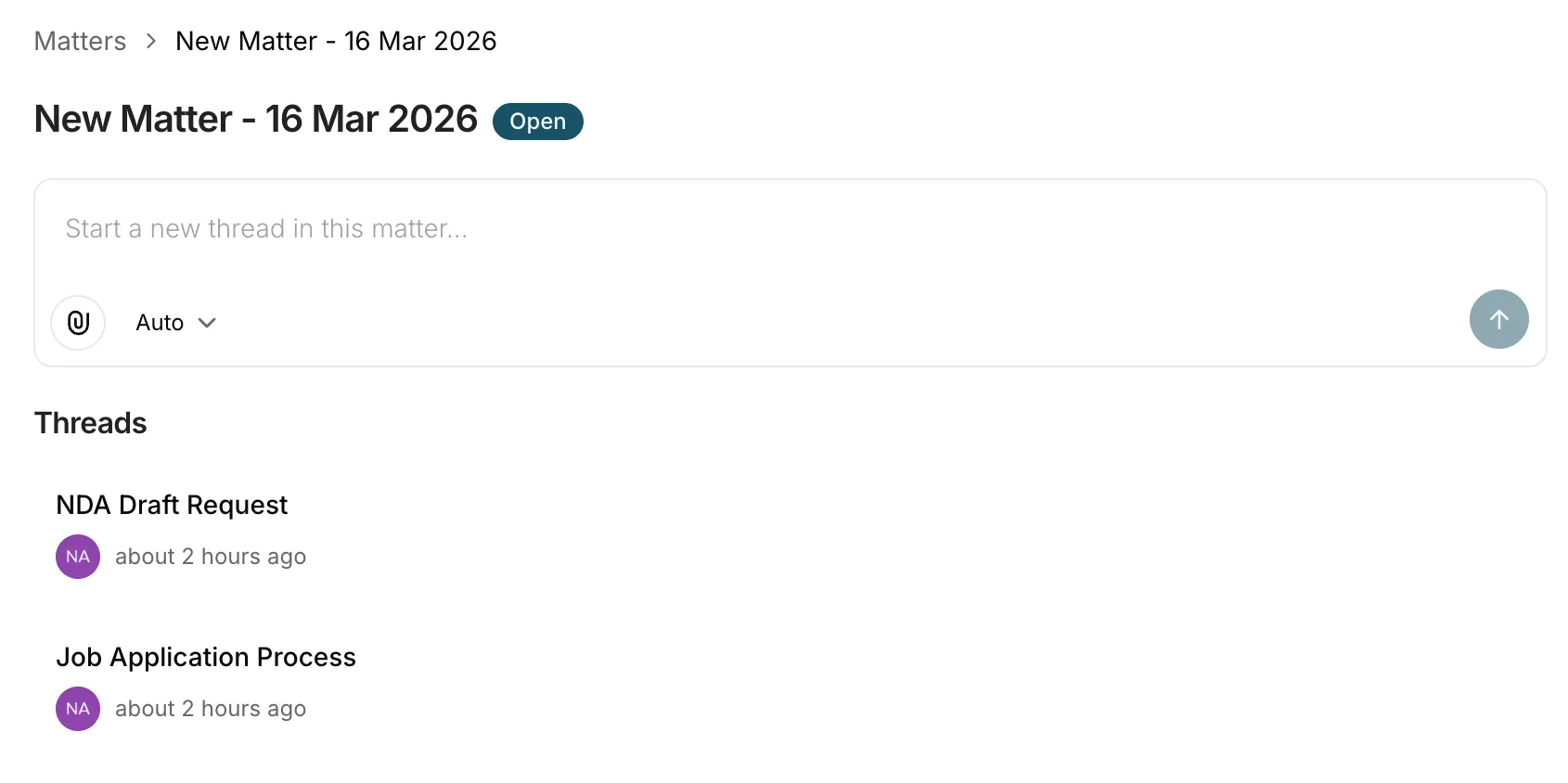
You can link existing threads to a matter, or create new threads directly from within a matter.
- Add a thread — link an existing thread to the matter so it appears alongside related work
- Remove a thread — unlink a thread from the matter without deleting it
A thread can belong to one matter at a time. Removing a thread from a matter doesn’t delete the thread — it just unlinks it.
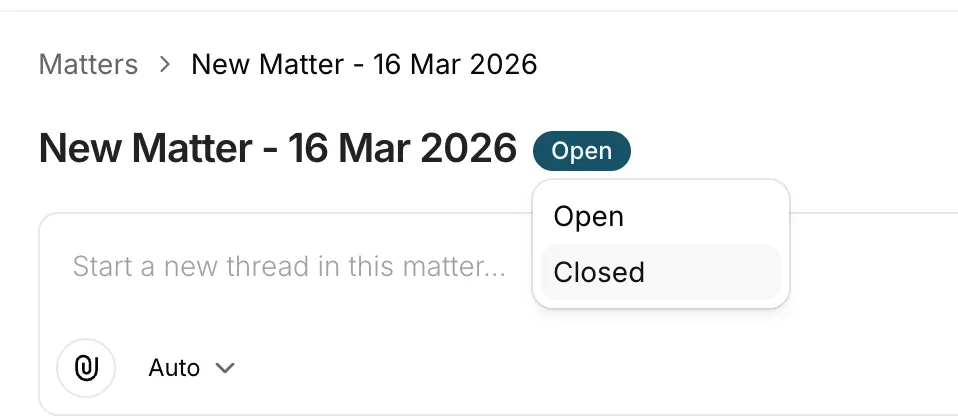
Status
Each matter has a status:
- Open — the matter is active and in progress
- Closed — the matter is complete
You can also archive a matter, which archives all threads and work linked to it.
Favouriting matters
Star the matters you work on most so they stay within reach. Favourites are personal to you, so starring a matter changes nothing for your colleagues.
To star a matter, open All matters and click the star icon at the start of the row. Click it again to unstar.
Starred matters:
- Appear in the Favourites section of the sidebar, above any starred threads, so you can jump straight back to them
- Sort to the top of the matters table
- Can be shown on their own with the Starred only filter above the table
To remove a favourite, click the filled star again, or open the more options menu next to the matter in the sidebar Favourites section and choose Remove favourite.
AI context across threads
When a thread is linked to a matter, Parachute’s AI has access to the broader context of the matter — not just the current thread. This means the AI can reference related conversations, documents, and notes from other threads in the same matter, leading to more relevant and grounded responses.
Practice management sync
We’re building integrations with popular practice management systems including ActionStep, Clio, LEAP, and Smokeball. Once connected, your matters will sync directly from your practice management software into Parachute — no manual re-entry needed.
Next steps
- AI Document Drafting — draft documents within matter threads
- Email to thread — forward emails to create threads you can link to matters
- Workstreams — organise matters by practice area
Was this page helpful?