

Quick start
Get your firm up and running on Parachute in a few steps. By the end of this guide, you’ll have your team onboarded, your knowledge base started, and your first AI-drafted document ready.
Sign up at app.goparachute.ai and complete the onboarding flow:
- Firm name - your law firm’s name as you’d like clients to see it
- Practice areas - helps Parachute tailor AI responses to your firm’s expertise
- Jurisdictions - select the countries and regions your firm covers (Australia, UK, Canada, etc.)
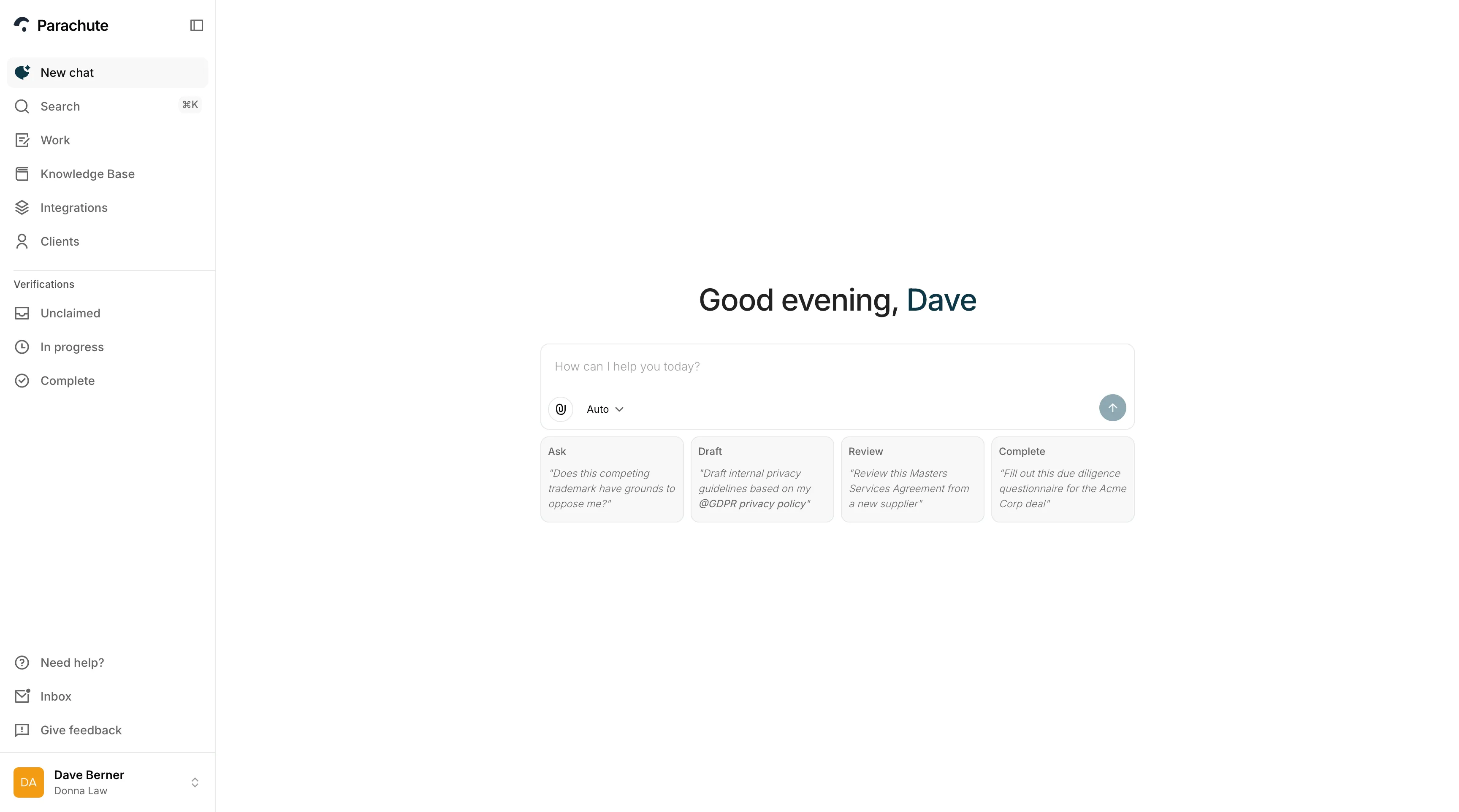
Once your firm is created, you’ll land on your dashboard.
Add your lawyers and support staff:
- Go to Account > Team
- Click Invite member
- Enter their email and assign a role - Admin for firm managers, Member for everyone else
See team management for more on roles and permissions.
Your knowledge base is what makes Parachute’s AI specific to your firm rather than generic.
Navigate to Legal sources in the sidebar, then open Knowledge base. Add:
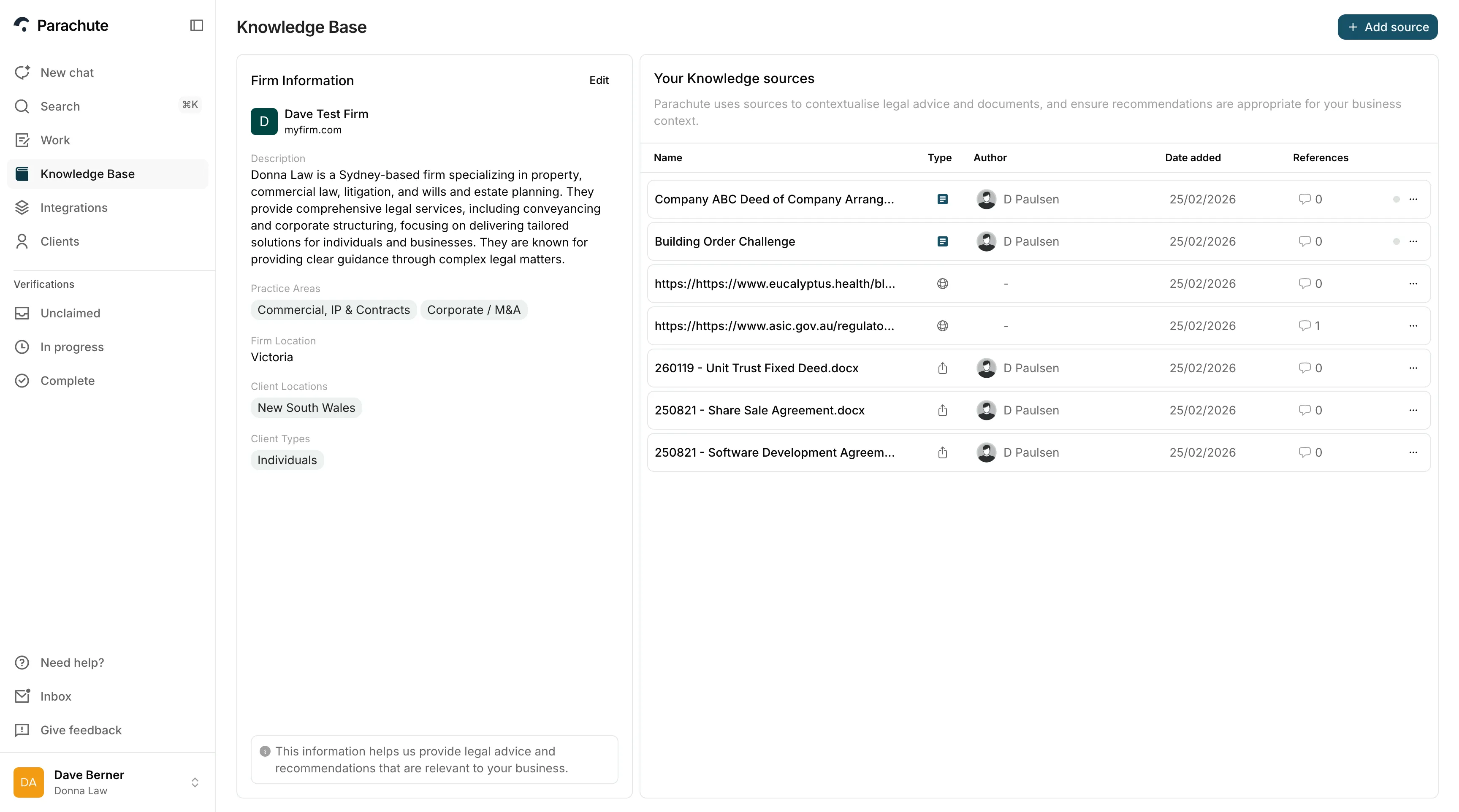
- Precedent documents - upload your firm’s standard templates, clauses, and reference policies
- Practice area guides - internal notes on regulatory requirements for your key jurisdictions
- Firm information - key details about your firm that Parachute should factor into AI responses
The more context you provide, the better Parachute tailors its drafting and review to your firm’s standards.
Now see the platform in action. Click New thread and start a conversation - for example:
“Draft a privacy policy for an Australian SaaS company with 50 employees that processes customer data and uses AWS.”
Parachute generates a first draft using your knowledge base, jurisdictions, and the details you provide. From there you can:
- Edit directly in the document editor
- Ask follow-up questions to refine specific sections
- Run a document review to identify legal gaps, obligations, and risks
Try different AI modes - Paralegal for quick tasks, Lawyer for detailed work, Senior Associate for complex analysis.
Before you start working with clients, make sure your profile is complete. Navigate to Account > Profile and add your name and a professional photo. Clients see this when you review their documents, so it helps build trust.
- Tips and tricks - best practices for getting the most out of Parachute
- Onboarding your first client - how to bring clients onto the platform
- Inviting clients - connect your clients to Parachute
- Credits - how credits work and what each AI mode costs
Was this page helpful?